Calendar Overview
The OpenReception calendar page shows you all appointments and available slots by default.
Navigation
Section titled “Navigation”You can use the arrows to the left an right of the shown date to go backwards or forward in the calendar.
You can use the Today button to quickly jump to the current date.
Slots & Appointments
Section titled “Slots & Appointments”Each channel has their own color. Colors are assigned by default.
- Available slots have a transparent background and a border.
- Booked appointments have a background and show the name of the client.
- Requested appointments have a semi-transparent background, a dashed border and show the name of the client.
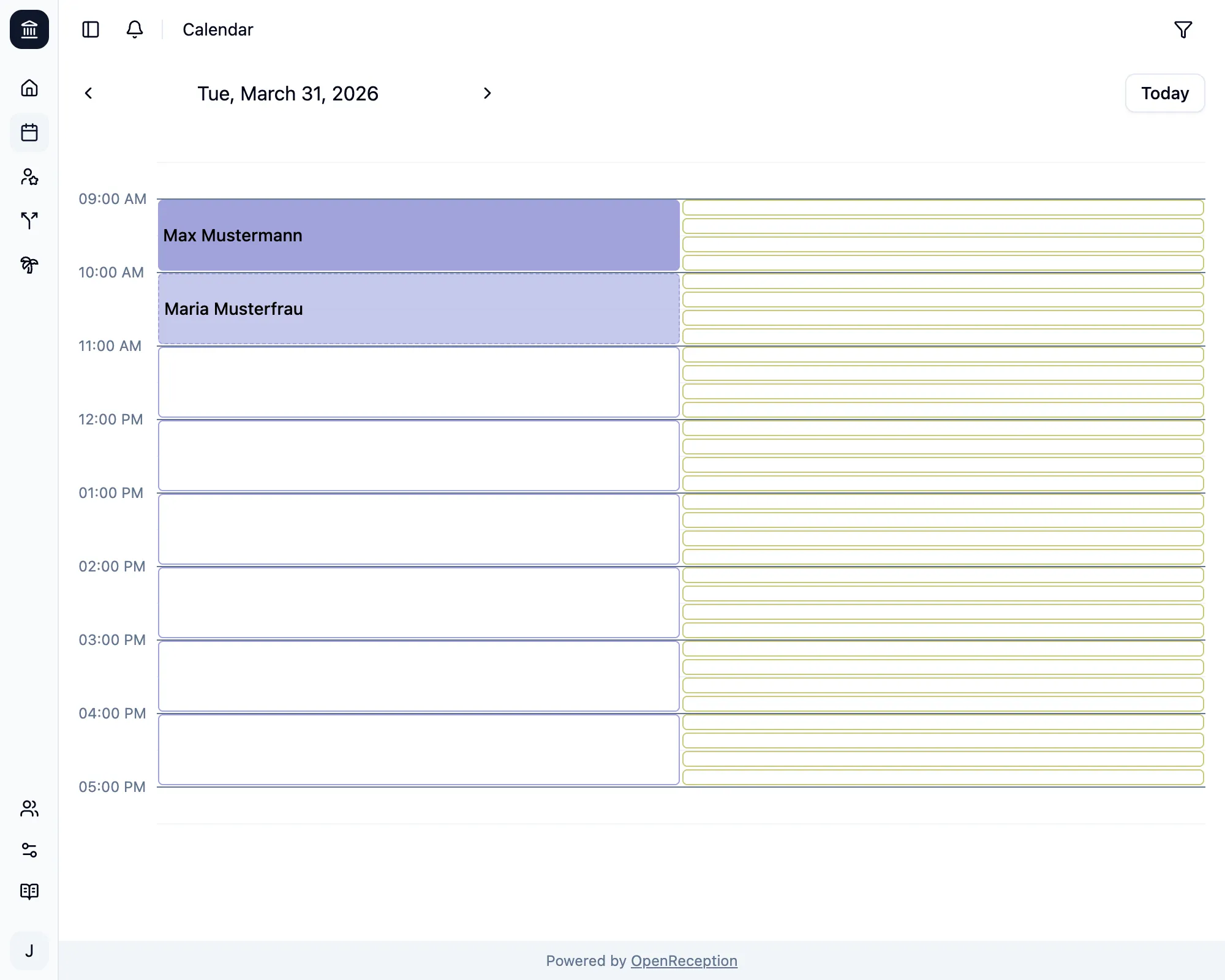
Hours without appointments or available slots are automatically hidden.
Filters & Zoom
Section titled “Filters & Zoom”Open the settings bar by clicking on the filter icon in the top right corner. On larger screen this filter bar is always shown.
You can filter by appointment availability, channel and agent. This allows you to look at todays schedule (for any agent or channel) and seach for the next available slot.
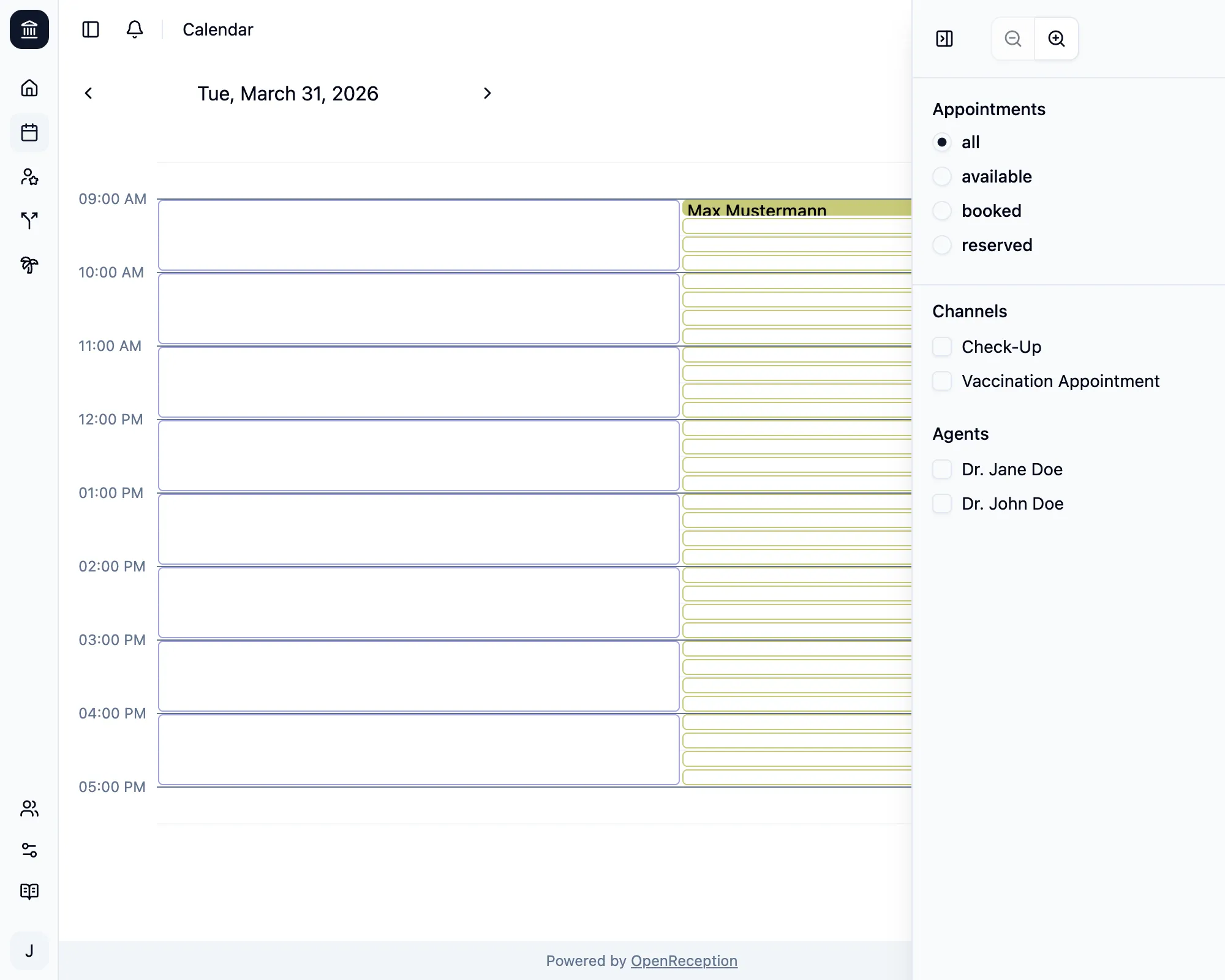
Using the channel filter will only show appointments and slots for the respective channel.
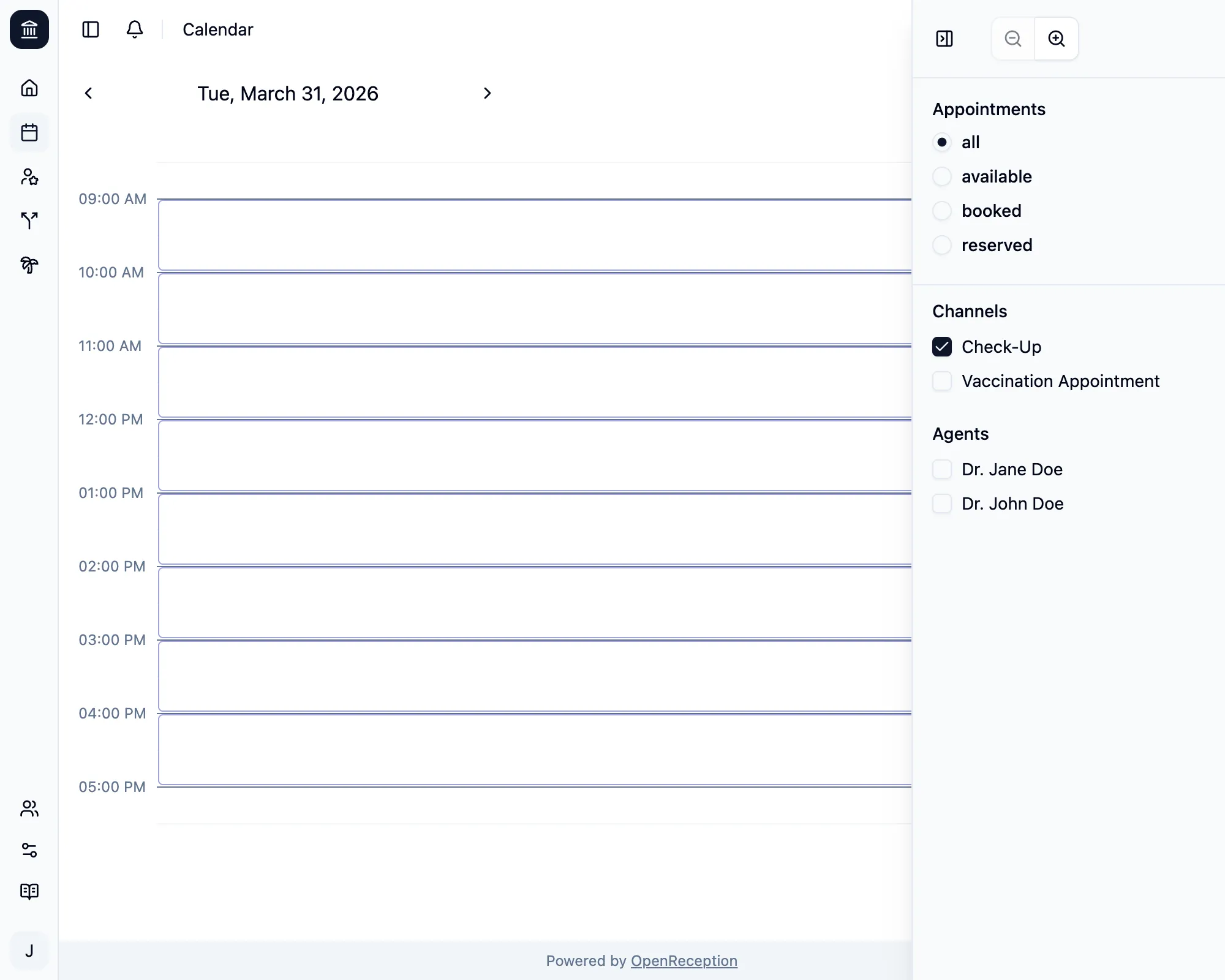
Using the agents filter will only show appointments and slots with this agent.
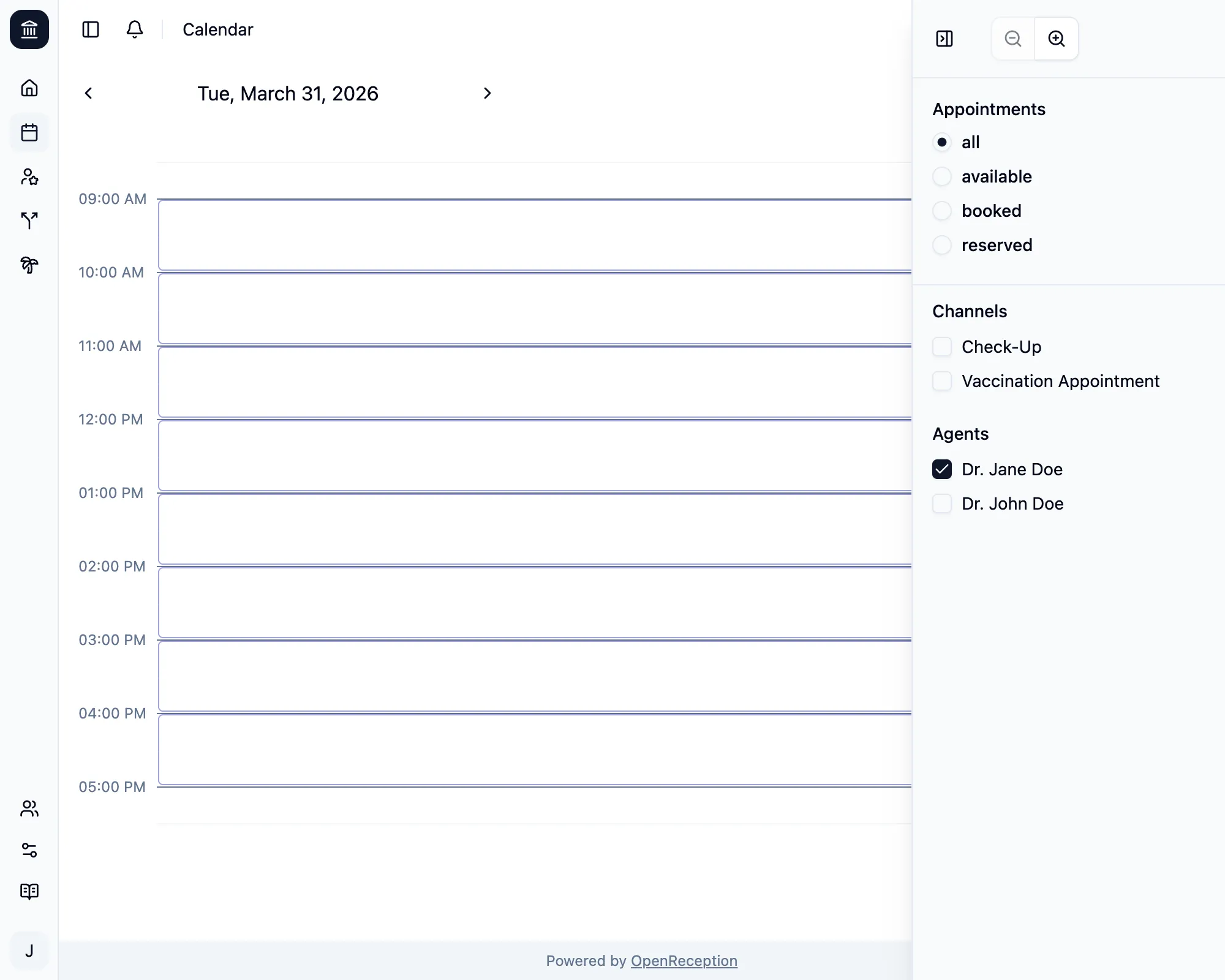
All filters can be combined.
You may also change the calendar zoom so it fit’s your slot duration best.
Appointment Details
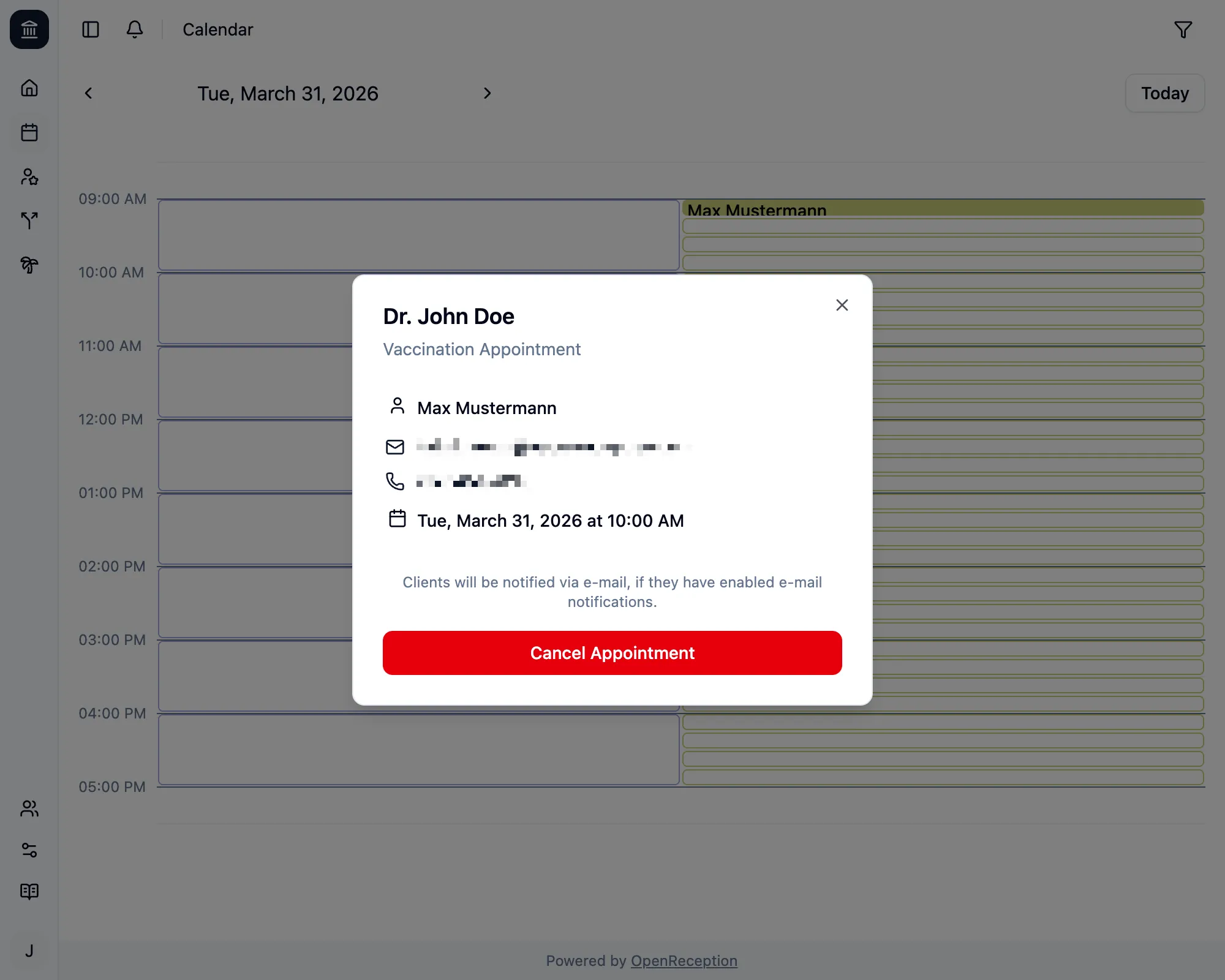
Section titled “Appointment Details”When clicking on an appointment a modal will open and show the details for this appointment.
Clicking on the E-Mail Address will automatically open your E-Mail application.
Clicking on the Phone Number will automatically start a call, if you have a phone app installed on your device.