
Setup Account
This step-by-step guide shows you how to setup your OpenReception account, if you have been invited to an organization.
-
You will have an e-mail with an invitiation in your inbox. Click on the link provided in that e-mail.
-
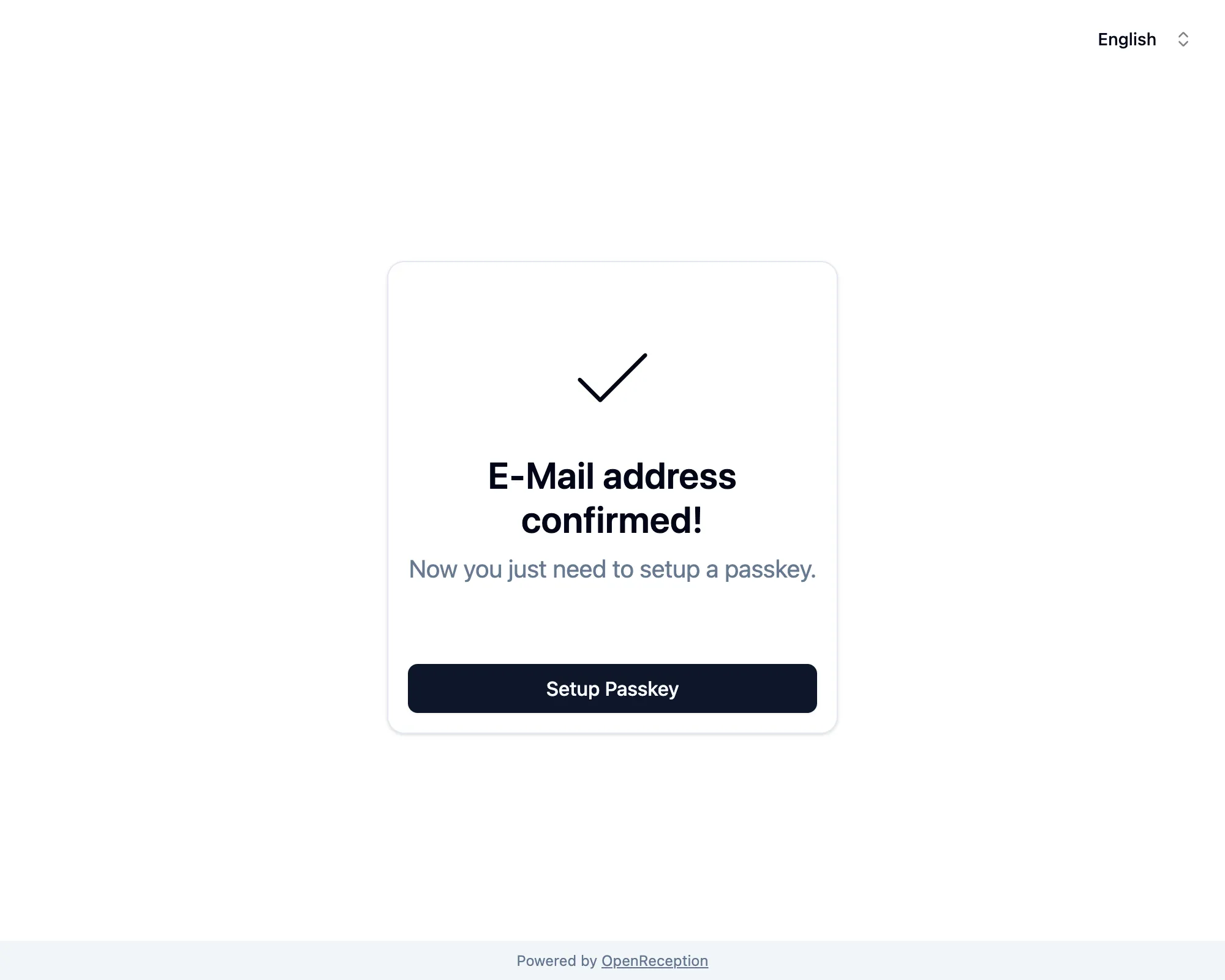
You may see an e-mail confirmation success screen.
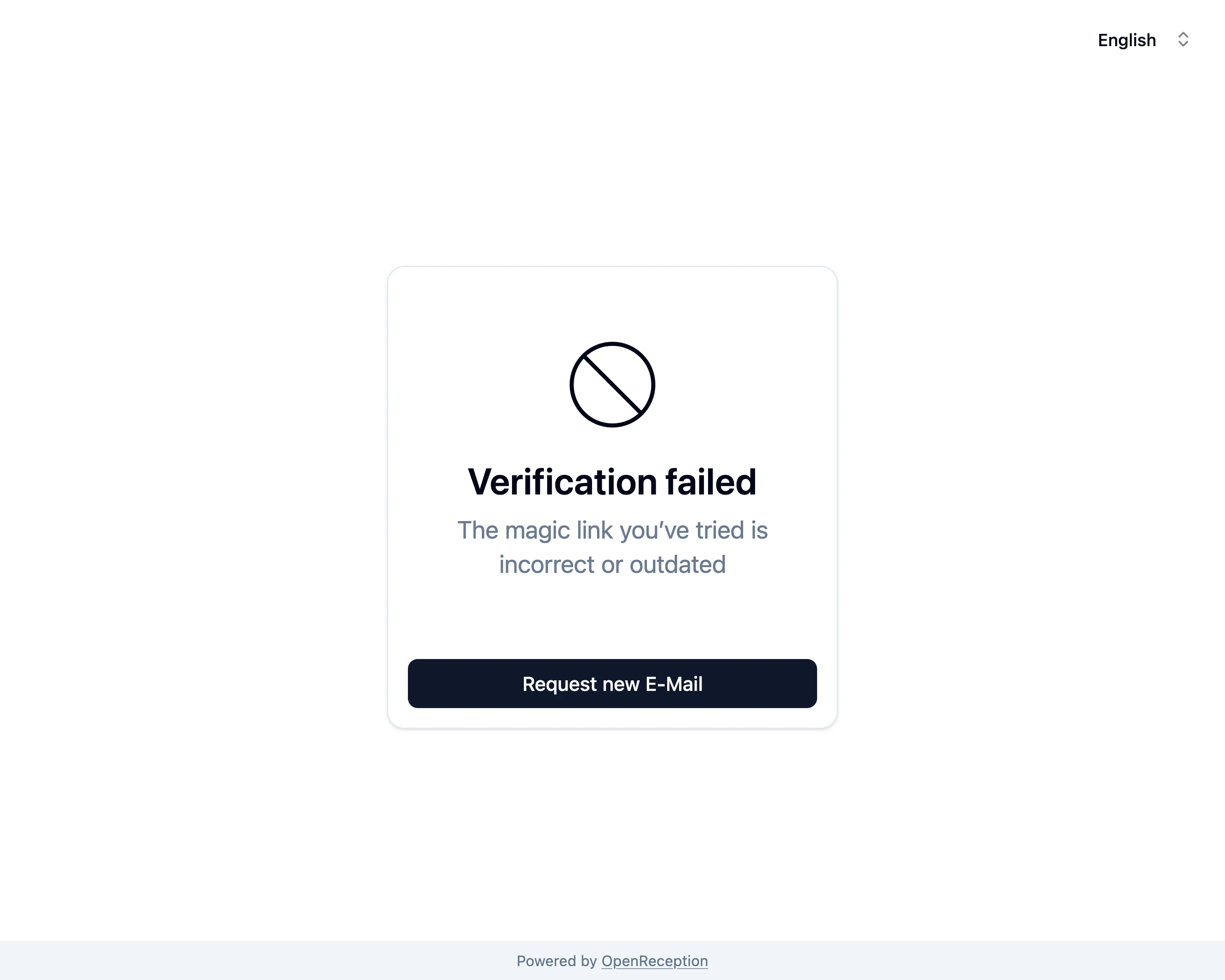
If your invitiation expired, you will see a Verification failed message. You can request a new invitation link on that same page by clicking Request new E-Mail.
-
When you’ve confirmed your e-mail address, click Setup Passkey.
-
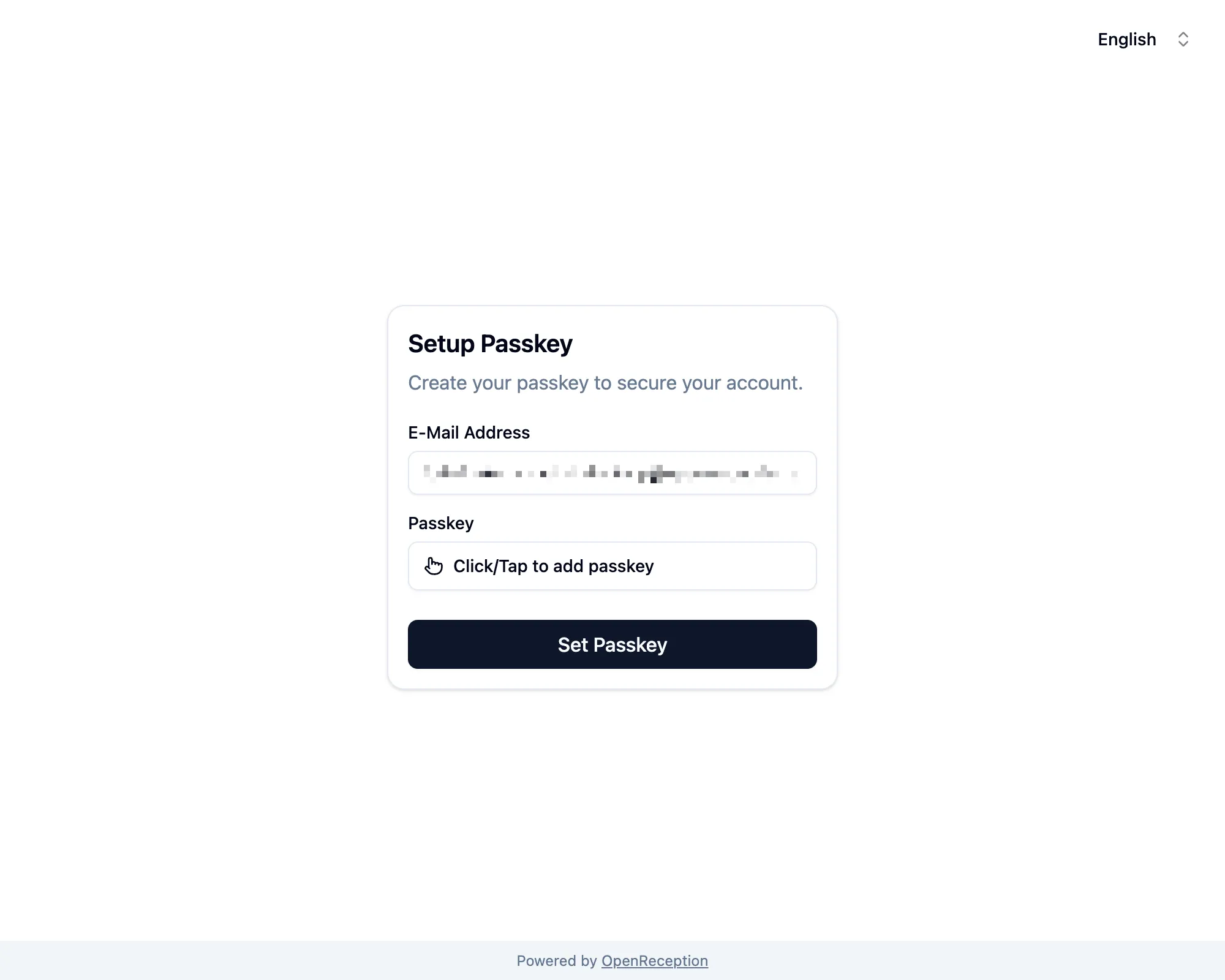
You will be forwarded to a form where you can add you passkey by clicking Click/Tap to add passkey.
-
Depending on your Passkey you will now see a system overlay that guides you through setting up your passkey for this organization. Follow the instructions.
For Software Passkeys this usually includes biometric approval.
For Hardware Passkeys this usually includes touching the contact area of a passkey (usually a metal surface) and entering a Passphrase/ PIN.
If this is the first time you are using that passkey, you may also have to set a PIN/Passphrase. Use a strong and long passphrase!
-
Once you’ve set the passkey, we need to retrieve additional data to decrypt appointments. You will see a confirm dialog:
Now use your newly created passkey to enable encryption with it.Click Ok.
-
You will be asked to verify the use of your passkey, which is similar to the process described above.
-
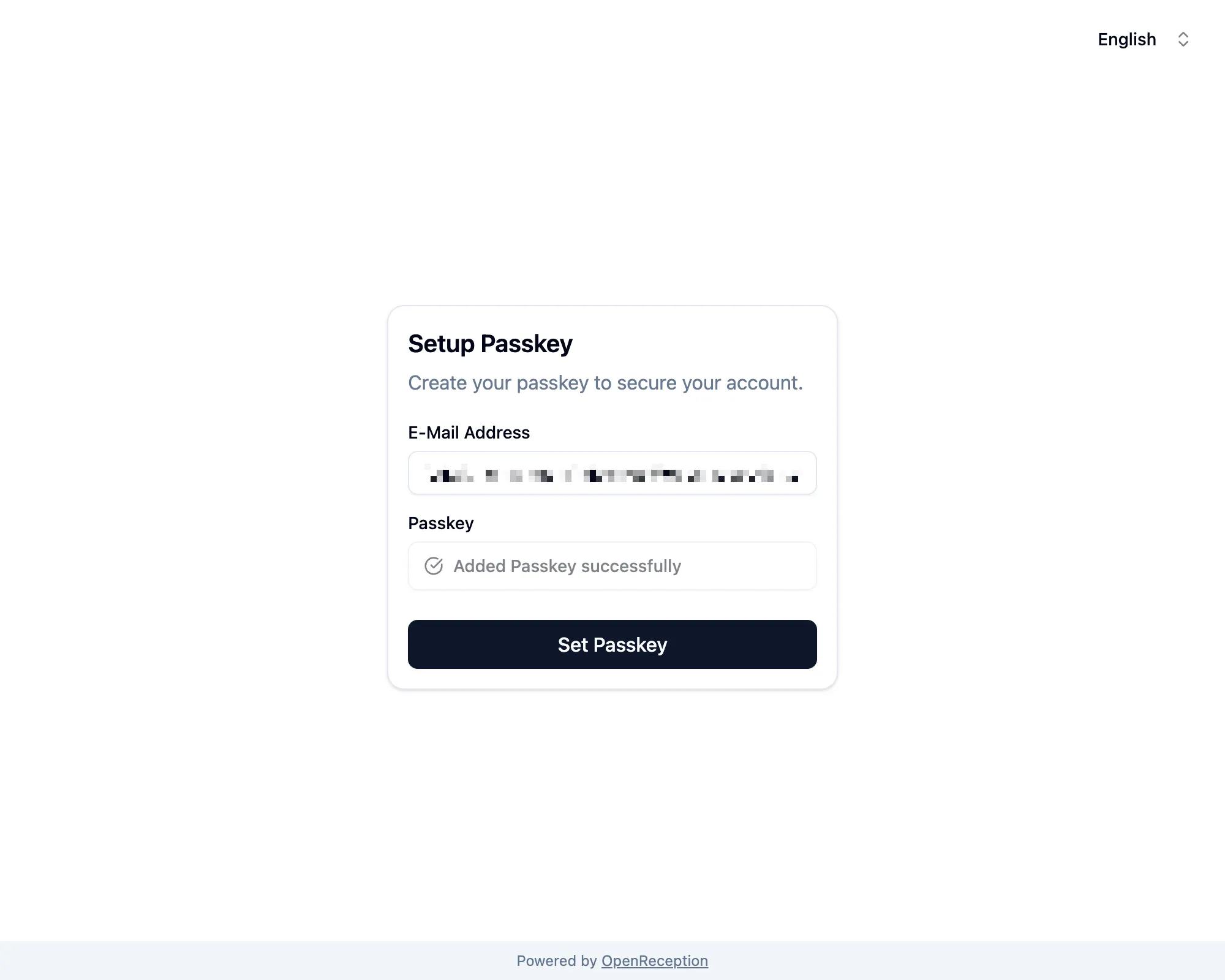
Once this process is done, you will see a message Added Passkey successfully in the passkey field. Now click Set Passkey
-
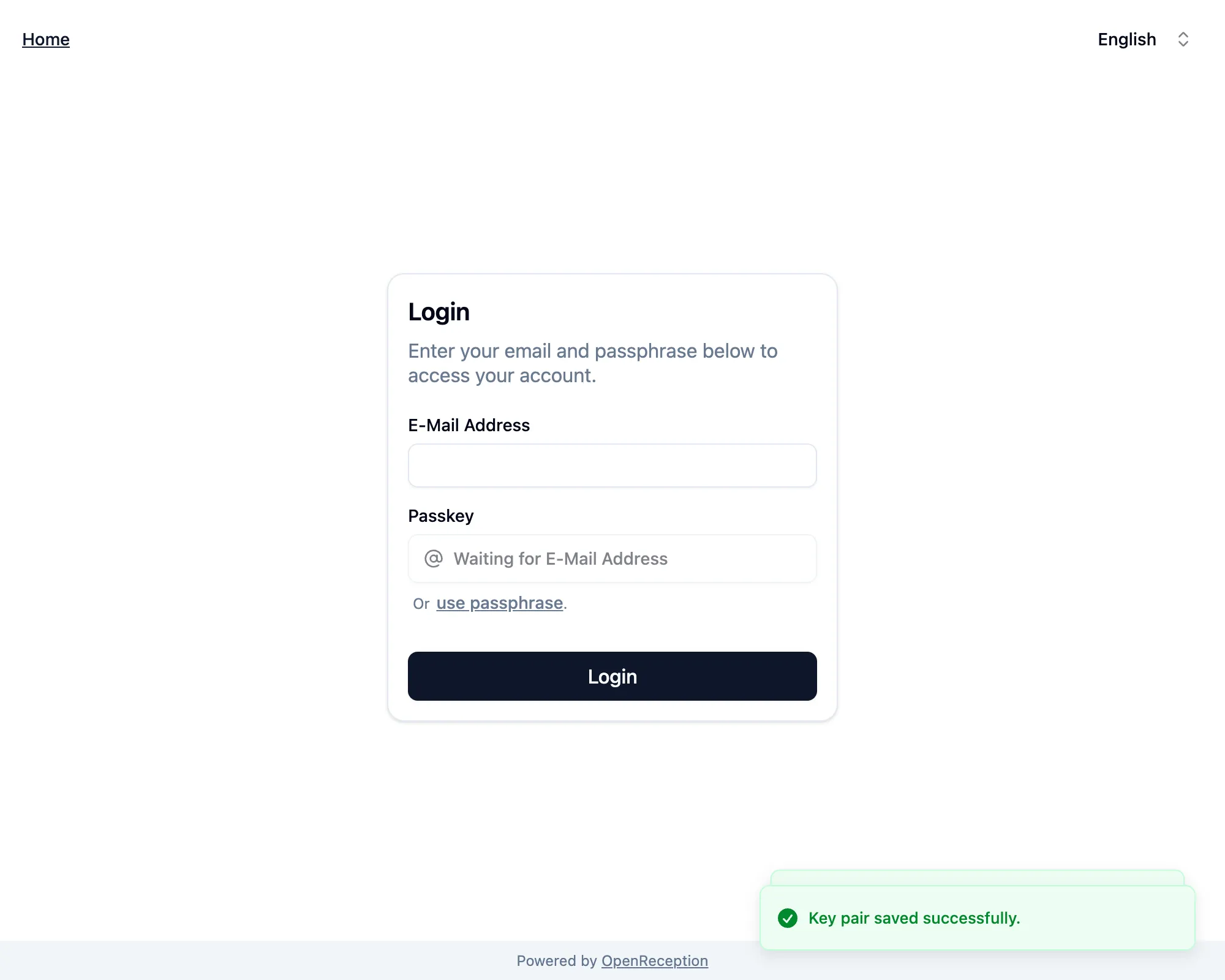
You will now see two success notifications and the login form.
Your account is now set up. Your team members may still need to grant you access to previous appointments.