
Add Staff Member
Before you add a staff member, decide on the role this staff member should get.
-
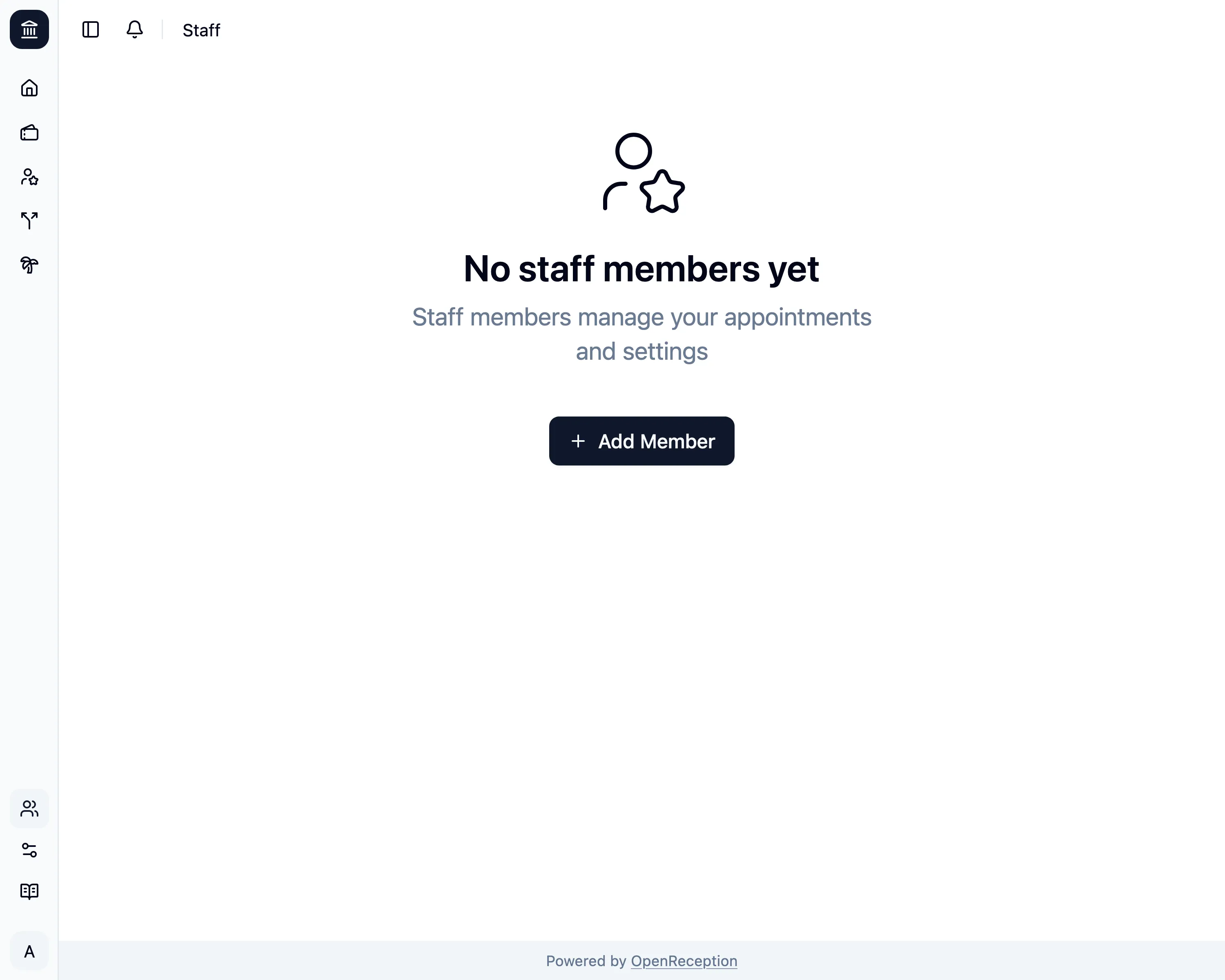
Navigate to the staff member section of the dashboard and click on Add Member
-
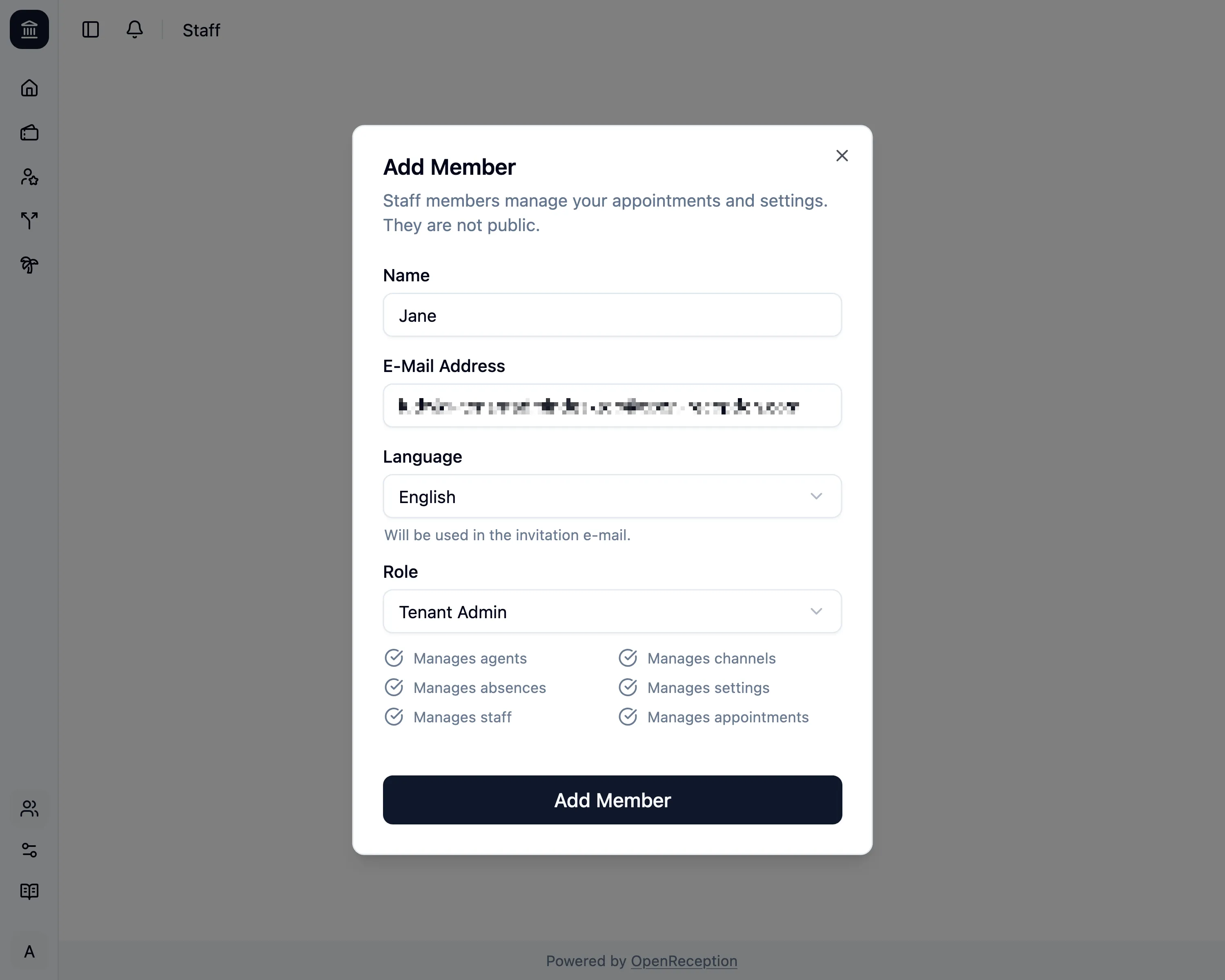
A modal with a form opens.
- Add a name
- Add an e-mail address.
- Change the language, if you want.
- Set the role for this account.
-
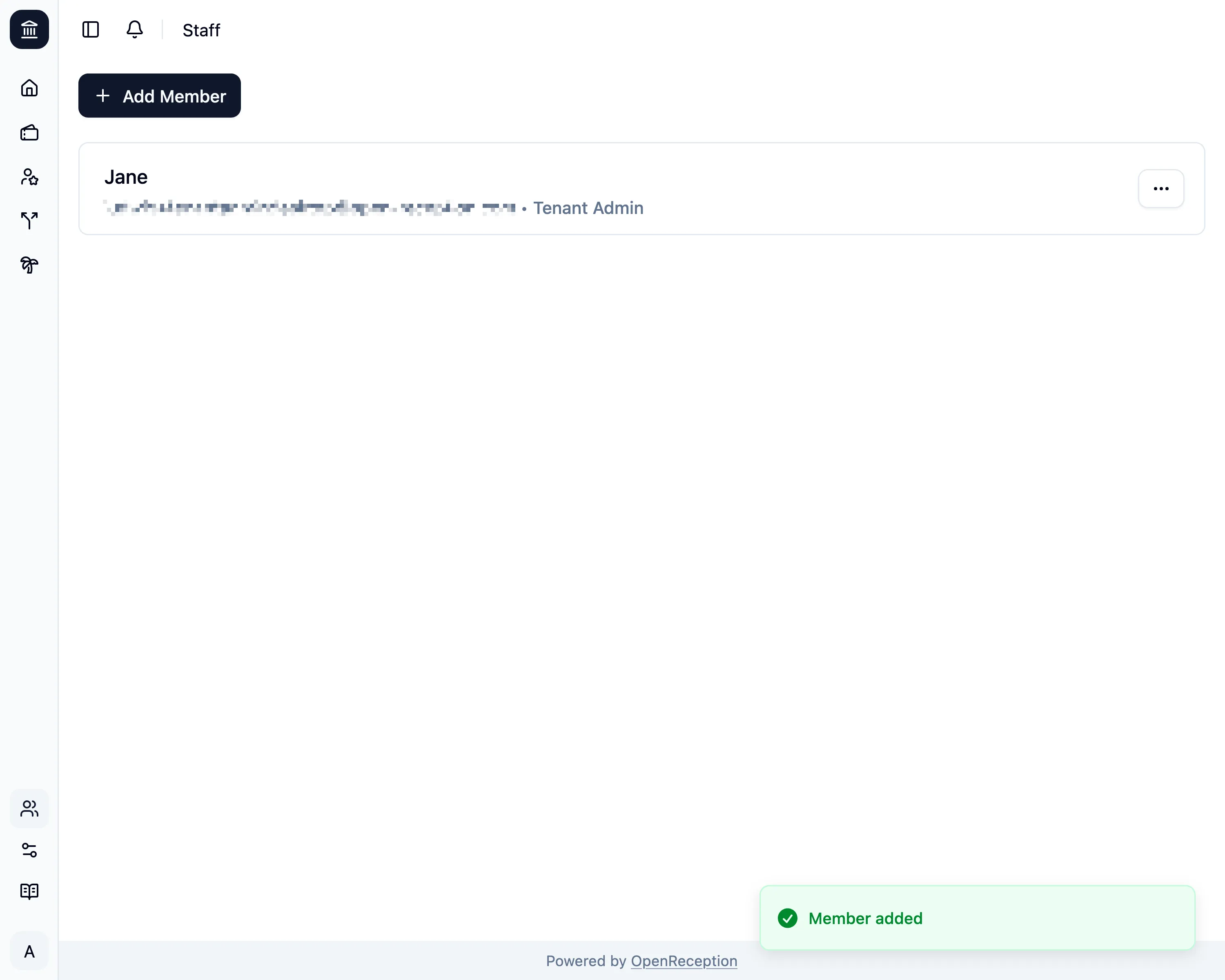
Then click Add Member and it will be saved.
-
They will get an e-mail with an expiring confirmation code. They can re-issue an updated one, if they are not quick enough.
Finalize Staff Member Onboarding
Section titled “Finalize Staff Member Onboarding”If you already have appointments in your instance, you have to grant this new staff member access to those. Follow this process, to make it work:
-
You, or any other fully onboarded staff member, must grant access to them.