Appointment Progress
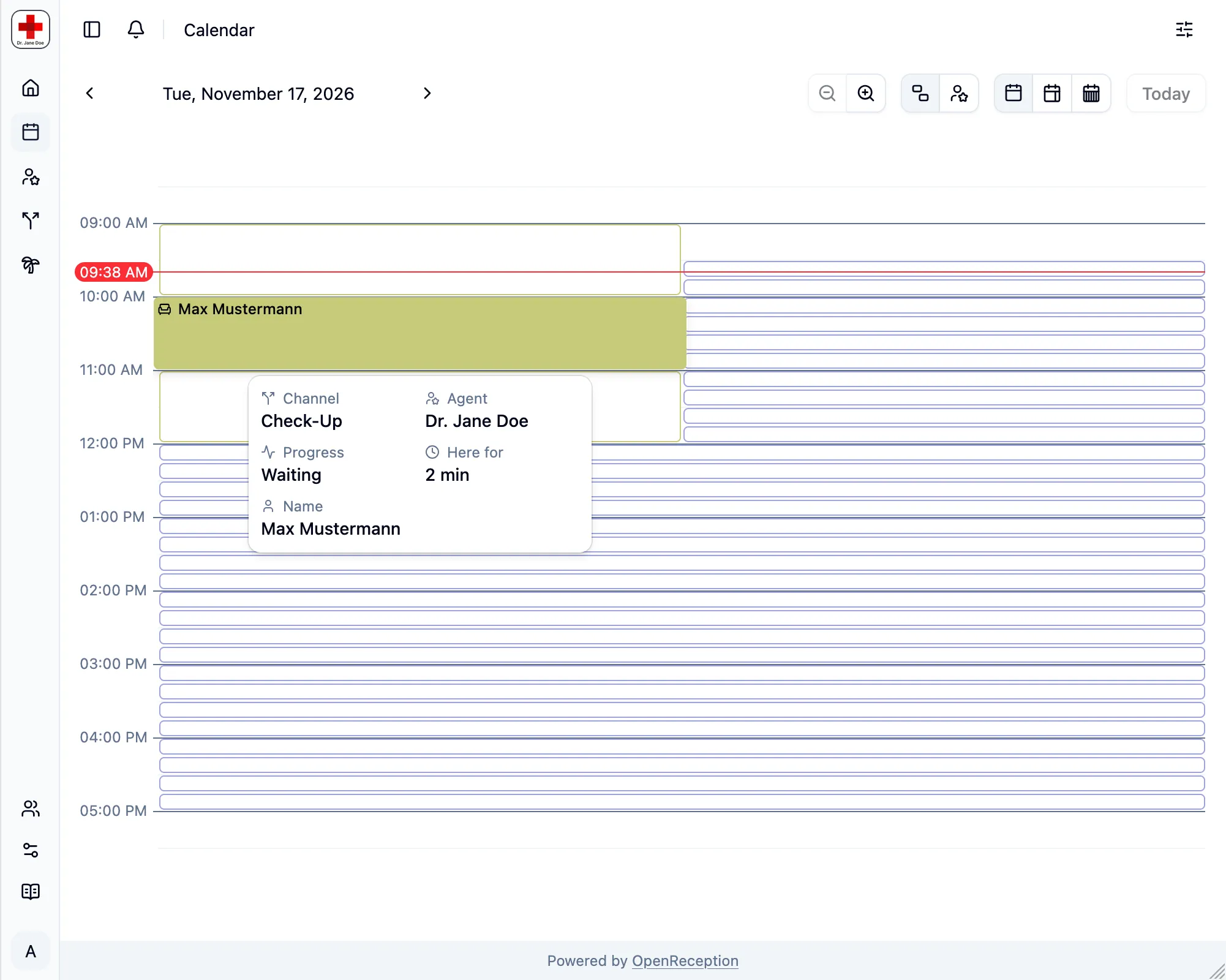
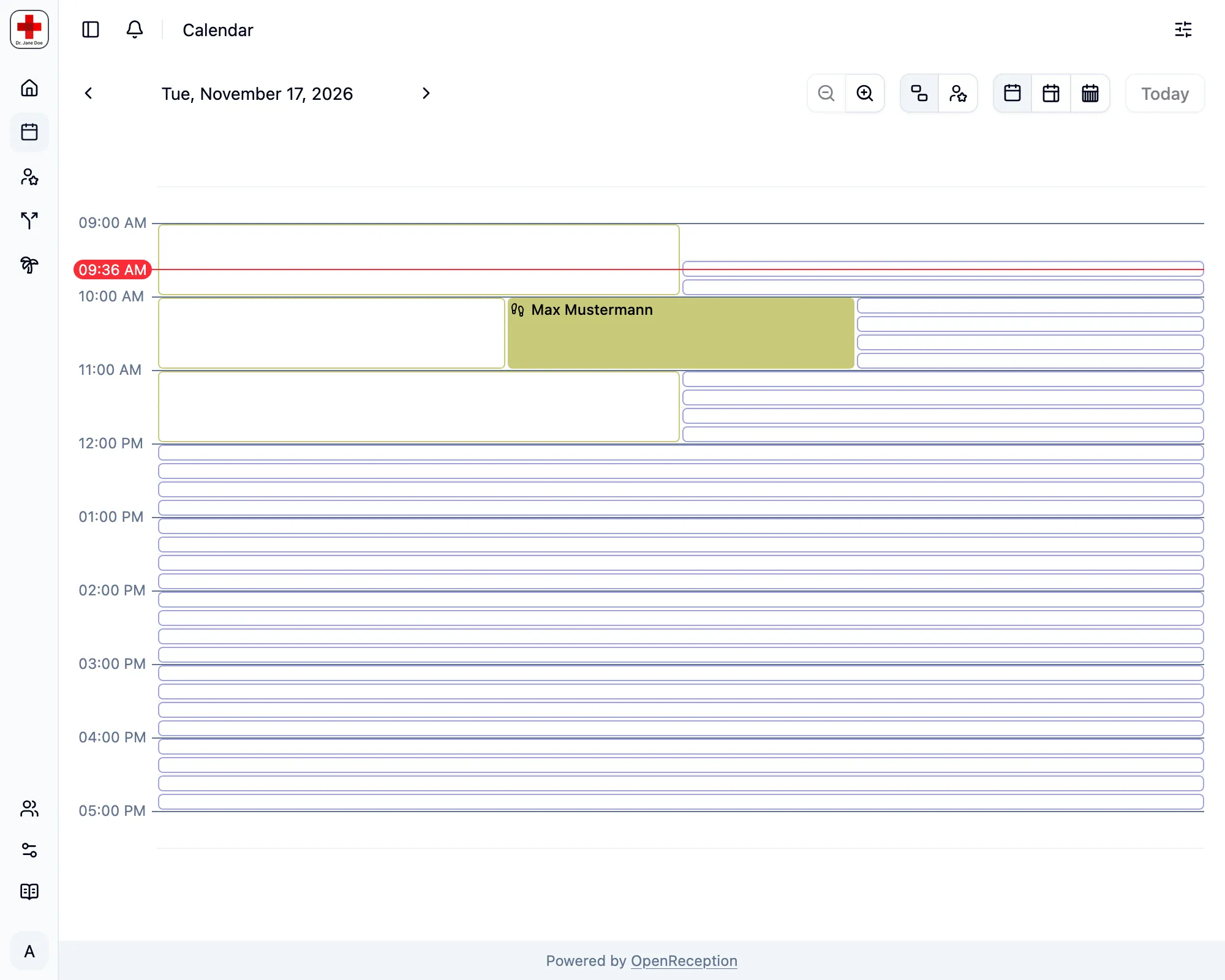
When an appointment takes place today, it will show the appointment progress right in the calendar overview.
A footsteps icon will appear on today’s appointment:
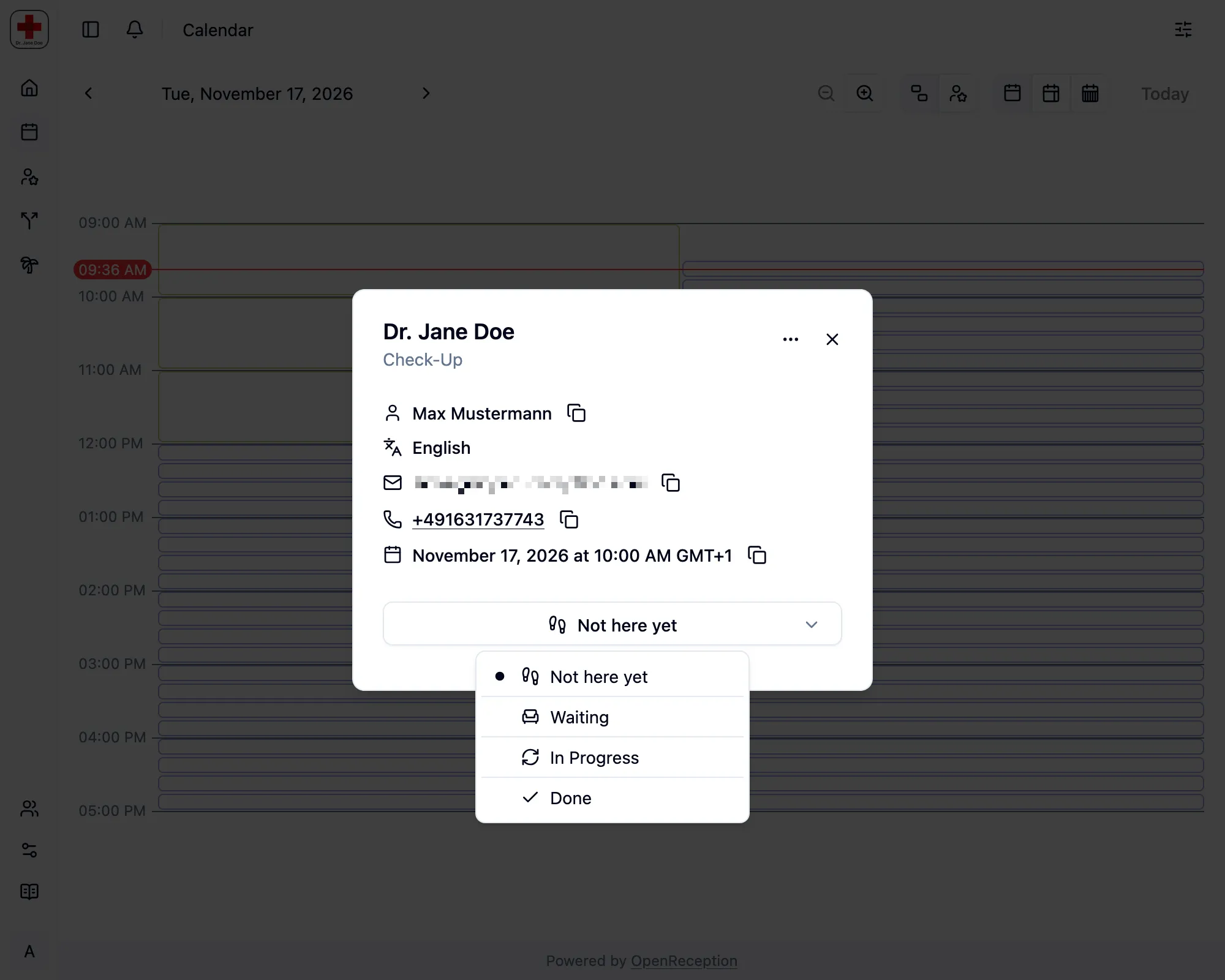
Once you click on the appointment you will be able to change the appointment progress. You have the following options:
- Not here yet
- Waiting
- In Progress
- Done
Custom Progress Steps Premium Feature
Section titled “Custom Progress Steps ”You can define custom progress steps for your appointments. This allows you to track the progress in a way that fits your workflow.
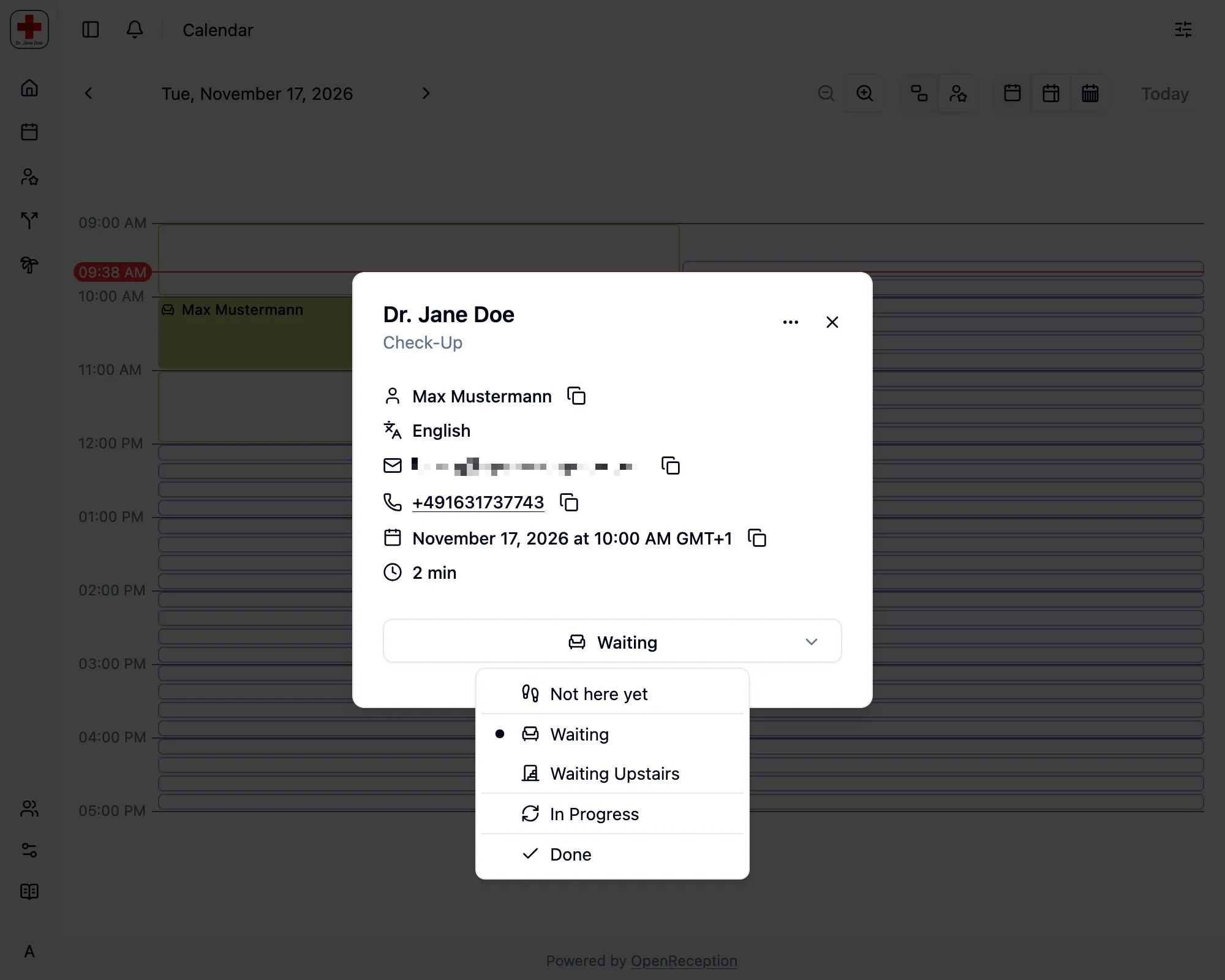
You can define custom progress steps in the settings area. To manage them
-
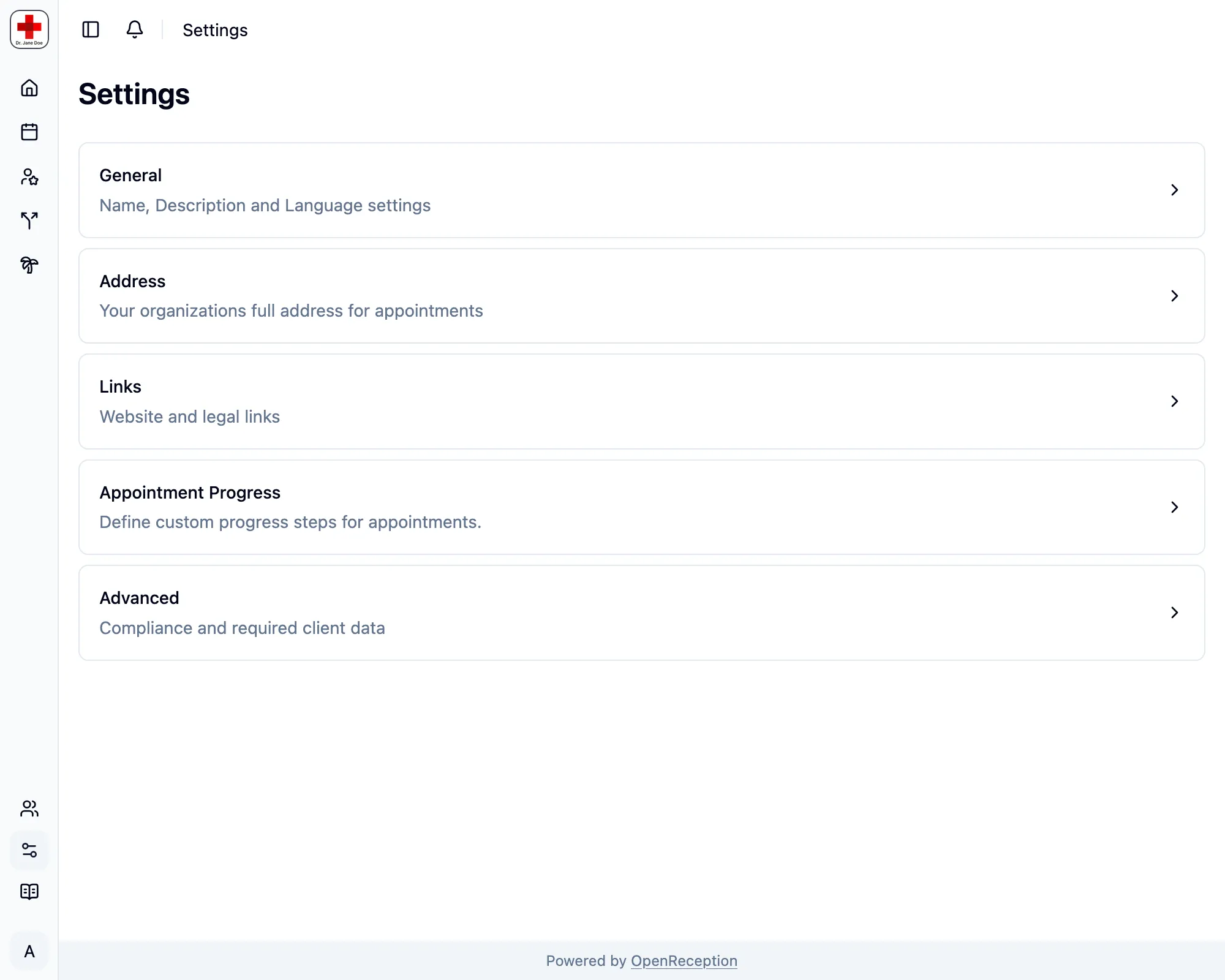
Navigate to the settings section of the dashboard and click on Appointment Progress.
-
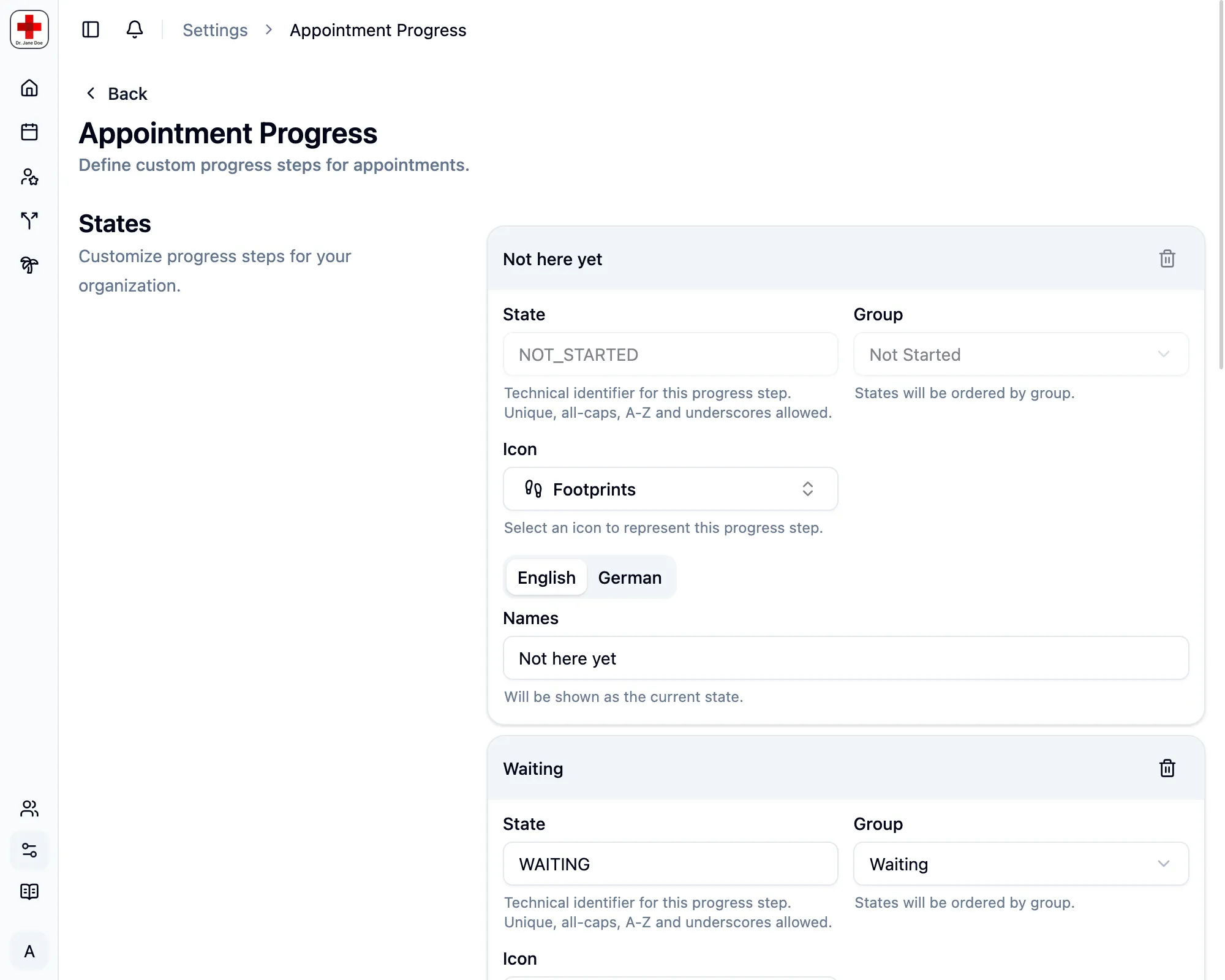
In the Appointment Progress settings, you can manage default progress steps and add custom ones.
-
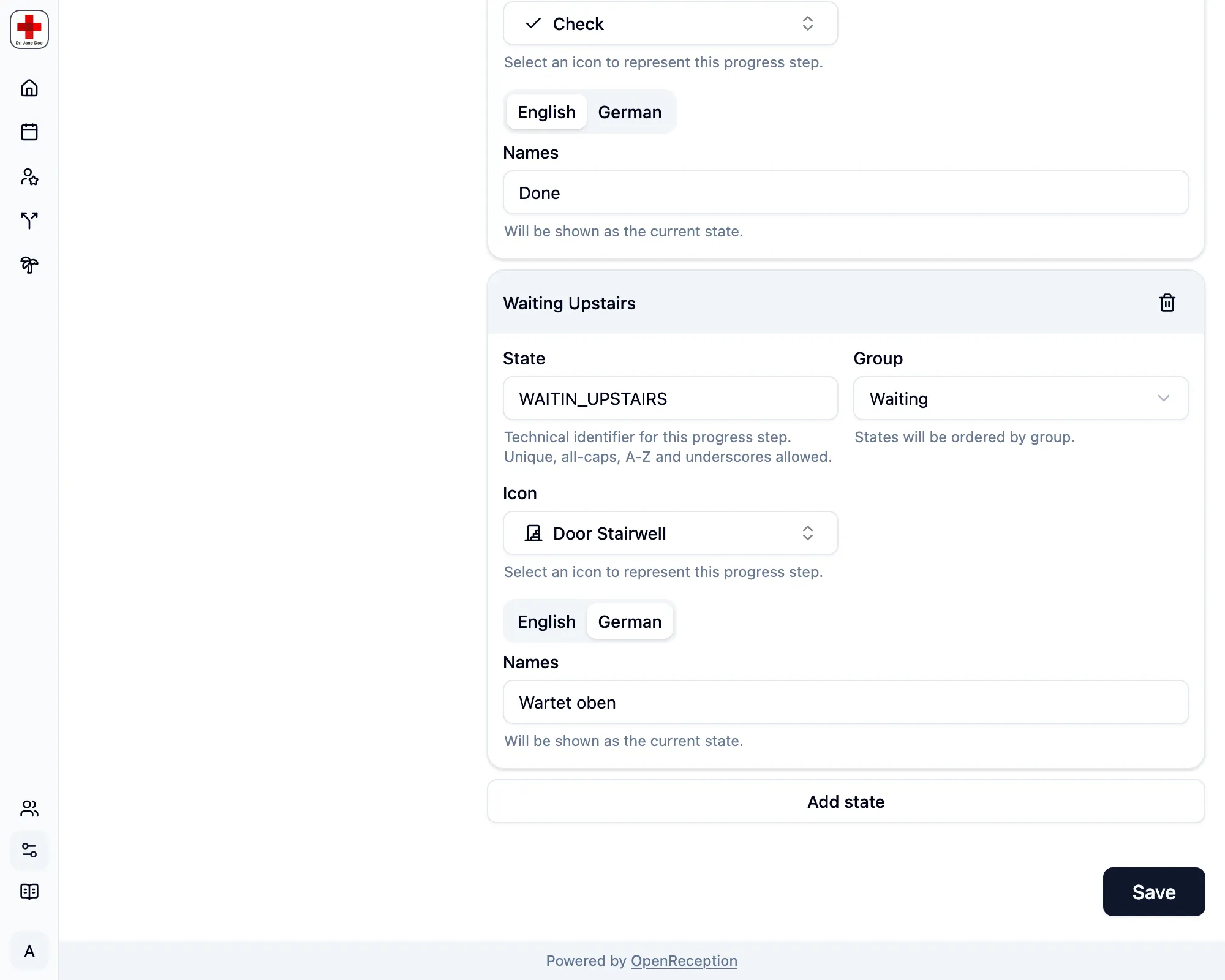
At the bottom of the list you can add a state. Within a state you can
- Set the State, a unique name for this status
- Set the Group, wich is one of Not Started, Waiting, In Progress, or Done
- Set the Icon, which will be displayed for this status in the calendar overview
- Set the Names, which will be displayed for this status in the calendar overview; set them for each language you support
-
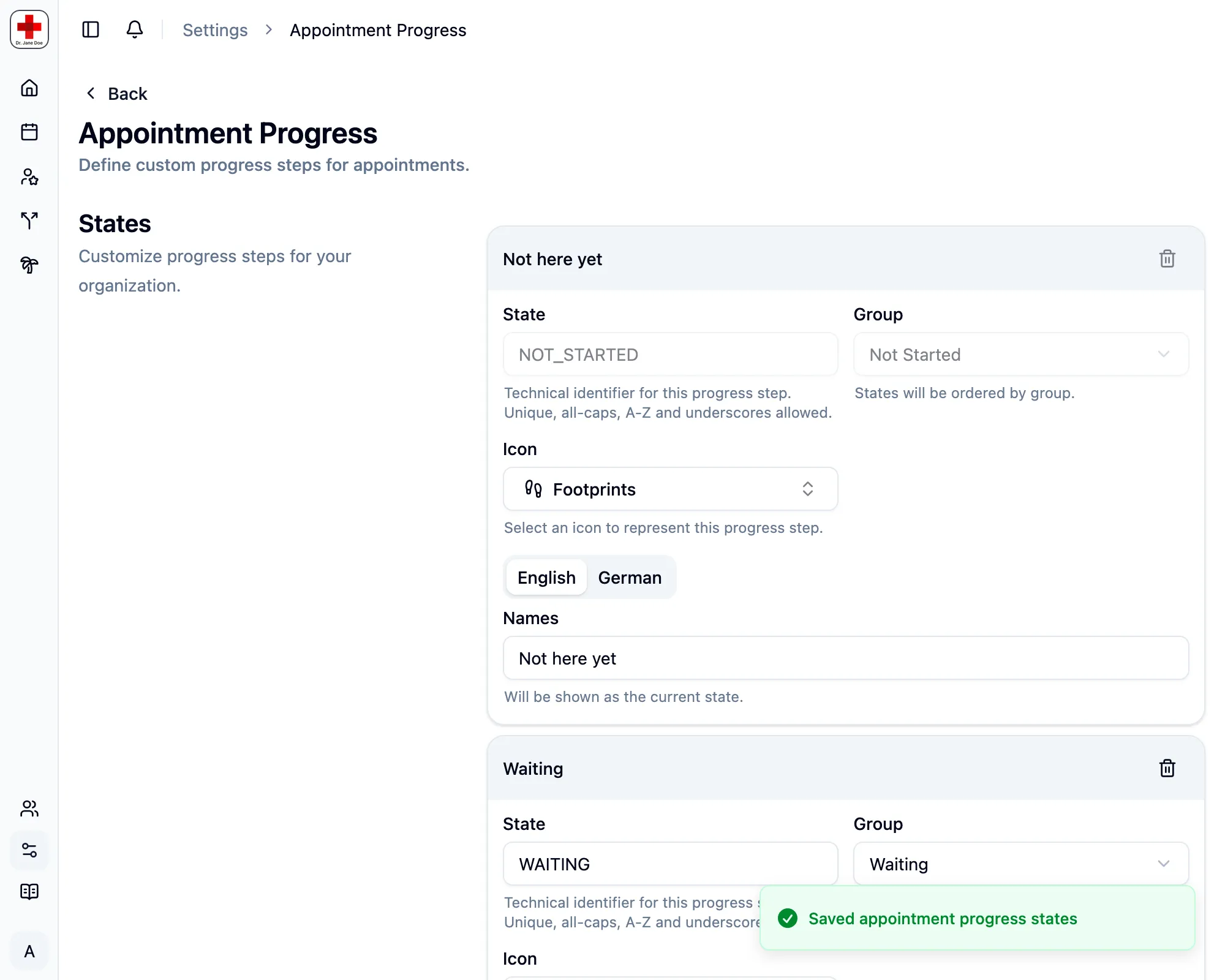
Click Save to apply your changes.
Waiting Time Premium Feature
Section titled “Waiting Time ”Additionally the waiting will be shown in the calendar, either
- once you hover with the mouse over the appointment in the calendar Plus Feature
- or in the appointment details modal.
The waiting time will automatically start once the appointment progress is changed for the first time.